Windows 11 Start Menu Styler
Customize the Start menu with themes contributed by others or create your own.
Also check out the Windows 11 Taskbar Styler, Windows 11 Notification Center Styler mods.
Themes
Themes are collections of styles. The following themes are integrated into the mod and can be selected in the settings:
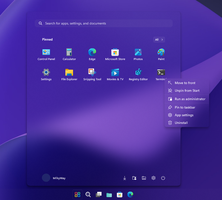
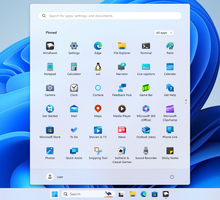
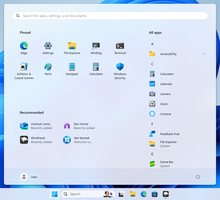
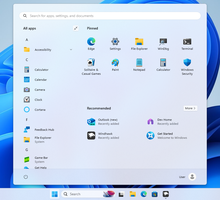
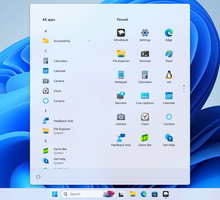
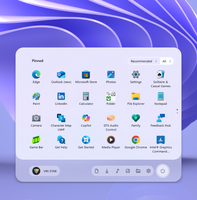
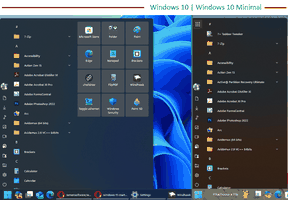
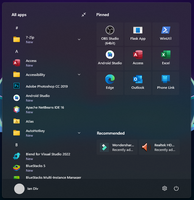
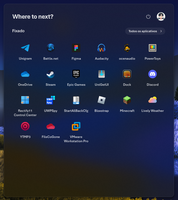
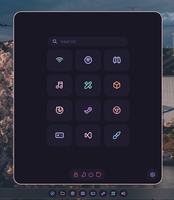
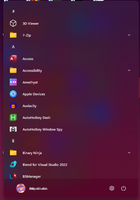
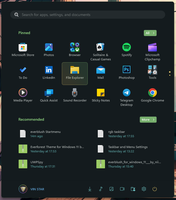
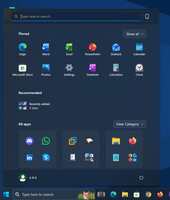
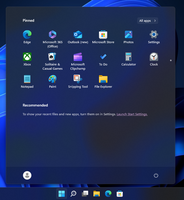
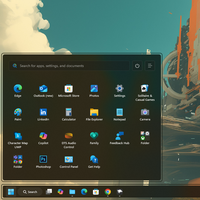
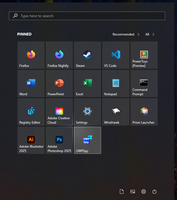
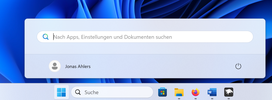
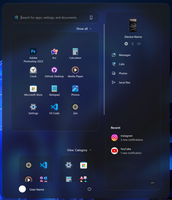
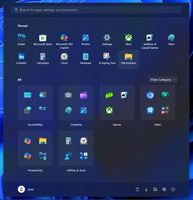
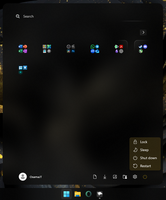
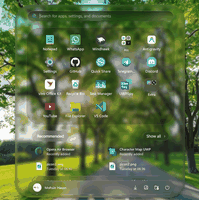
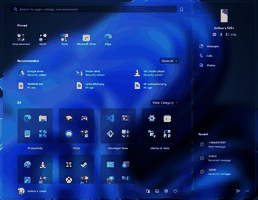
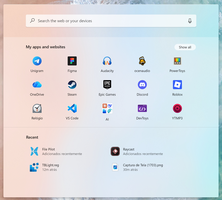
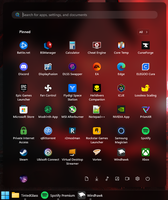
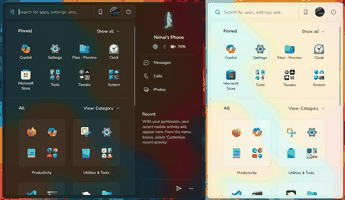
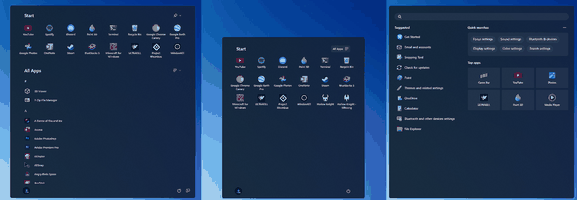
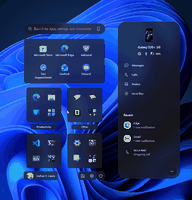
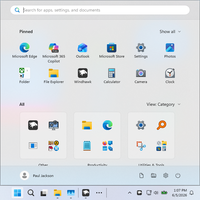
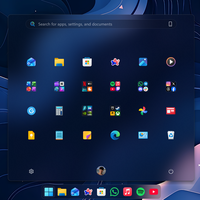
More themes can be found in the Themes section of The Windows 11 Start menu styling guide. Contributions of new themes are welcome!
Advanced styling
Aside from themes, the settings have two sections: control styles and resource variables. Control styles allow to override styles, such as size and color, for the target elements. Resource variables allow to override predefined variables. For a more detailed explanation and examples, refer to the sections below.
The Start menu's XAML resources can help find out which elements and resource variables can be customized. To the best of my knowledge, there are no public tools that are able to decode the resource files of recent Windows versions, but here are XAML resources which were obtained via other means for your convenience: StartResources.xbf.
The UWPSpy tool can be used to inspect the Start menu control elements in real time, and experiment with various styles.
For a collection of commonly requested Start menu styling customizations, check out The Windows 11 Start menu styling guide.
Control styles
Each entry has a target control and a list of styles.
The target control is written as Class or Class#Name, i.e. the target
control class name (the tag name in XAML resource files), such as
StartMenu.StartInnerFrame or Rectangle, optionally followed by # and the
target control's name (x:Name attribute in XAML resource files). The target
control can also include:
- Child control index, for example:
Class#Name[2]will only match the relevant control that's also the second child among all of its parent's child controls. - Control properties, for example:
Class#Name[Property1=Value1][Property2=Value2]. - Parent controls, separated by
>, for example:ParentClass#ParentName > Class#Name. *between two>separators to match any number of intermediate parent controls, for example:ParentClass > * > Class#NamematchesClass#NamewhenParentClassis any of its ancestors (with zero or more controls in between).*must be in the middle of the target (not the leftmost or rightmost part), and consecutive*are not allowed.:rootas the leftmost target part to require that the next part has no parent, i.e., it's a root element. For example::root > Class#NamematchesClass#Nameonly when it has no parent control.:rootmust be followed by a non-*target part.- Visual state group name, for example:
Class#Name@VisualStateGroupName. It can be specified for the target control or for a parent control, but can be specified only once per target. The visual state group can be used in styles as specified below.
Several target controls can be specified for the same styles by separating them
with commas, for example: ParentClass > Class#Name1, ParentClass > Class#Name2.
Note: The target is evaluated only once. If, for example, the index or the properties of a control change, the target conditions aren't evaluated again.
Each style is written as Style=Value, for example: Height=5. The := syntax
can be used to use XAML syntax, for example: Fill:=<SolidColorBrush Color="Red"/>. Specifying an empty value with the XAML syntax will clear the
property value, for example: Fill:=. In addition, a visual state can be
specified as following: Style@VisualState=Value, in which case the style will
only apply when the visual state group specified in the target matches the
specified visual state.
For the XAML syntax, in addition to the built-in taskbar objects, the mod
provides a built-in blur brush via the WindhawkBlur object, which supports the
BlurAmount, TintColor, TintOpacity, TintLuminosityOpacity,
TintSaturation, NoiseOpacity, NoiseDensity, and FallbackColor
properties. For example: Fill:=<WindhawkBlur BlurAmount="10" TintColor="#80FF00FF"/>. Theme resources are also supported for TintColor and
FallbackColor, for example: Fill:=<WindhawkBlur BlurAmount="18" TintColor="{ThemeResource SystemAccentColorDark1}" TintOpacity="0.5"/>. The
FallbackColor is used in place of the blur effect when battery saver is on or
when transparency effects are disabled in the system settings.
Targets and styles starting with two slashes (//) are ignored. This can be
useful for temporarily disabling a target or style.
Style variables
Beyond literal values, XAML values, and style constants, styles can reference
live property values via style variables. A capture rule of the form
Property=>VarName observes a control's property and publishes its value as
VarName; other styles then substitute it with {{VarName}}. Whenever the
captured value changes or the variable becomes undefined, every dependent style
is recomputed and reapplied.
Capture rules cannot be combined with := or with the per-rule @VisualState
qualifier.
For example, these two styles on the same target keep it square, with the height tracking the width:
ActualWidth=>width1
Height={{width1}}
A capture rule may match several controls at once. A style reading {{VarName}}
gets the value from whichever capturing control is closest to it in the control
tree, i.e. the one it shares the deepest common parent with. The variable only
becomes undefined once the last capturing control is gone.
A substitution can appear anywhere in a value, including alongside literal text:
Margin=0,{{x1}},0,{{x2 + 10}}
Inside {{ ... }}, the supported expression syntax is:
- Numbers (e.g.
42,3.14). - Backtick-delimited string literals (e.g.
`Auto`,`*`), where a doubled backtick encodes one literal backtick. Backtick is used rather than a quote so literals don't clash with YAML or XAML quoting. - Variable references (a previously captured
VarName). - Arithmetic
+,-,*,/with standard precedence, and unary+,-. - Comparisons
<,<=,==,>=,>,!=, evaluating to1or0. The relational operators require numbers;==and!=compare two numbers or two strings by value and treat a number-versus-string mismatch as unequal. - The conditional
cond ? a : b:awhencondis non-zero, otherwiseb. The condition must be numeric, but each branch may be a number or a string, e.g.{{width > 0 ? `*` : `Auto`}}selects aGridLengthkeyword. min(a, b)andmax(a, b).- Parentheses for grouping, and nesting such as
{{min(a, b + 1) * 2}}.
Arithmetic, the unary sign, the relational comparisons, and min / max
require numeric operands. A string can only be produced by a literal or a
string-typed variable, compared with == / !=, and selected by the
conditional.
Brace pairs match innermost-first, so {{{x}}} is parsed as a literal {, the
substitution {{x}}, and a literal }, producing {<value-of-x>}.
A bare substitution {{VarName}} (with no operators) inserts the variable's
captured value verbatim. This works only for primitive captured types (numeric,
boolean, string); other types (brushes, thicknesses, etc.) are unsupported, and
substituting one skips the style, as does a bare reference to an undefined
variable.
Inside an expression, an undefined variable instead evaluates to the empty
string, letting a style supply its own default via the conditional, e.g. {{width == `` ? 80 : width}} yields 80 until width is captured. The
numeric operators above then fail on such a variable, skipping the style rather
than treating it as 0.
Resource variables
Some variables, such as size and padding for various controls, colors, and brushes, are defined as resource variables. You can override existing resources or define new theme-aware resources.
Overriding existing resources
Use key=value to override an existing resource.
Defining theme-aware resources
Use Key@Dark=value and Key@Light=value to define new resources with
different values for dark and light themes. These can then be referenced in
styles using {ThemeResource key}.
For example, to define a custom accent color that automatically adjusts based on the system theme:
AutoAccent@Dark={ThemeResource SystemAccentColorDark1}
AutoAccent@Light={ThemeResource SystemAccentColorLight2}
Then use it in a style:
Background:=<SolidColorBrush Color="{ThemeResource AutoAccent}" />
The value will automatically update when the system accent color changes.
Using XAML syntax
The := syntax can be used to set a XAML value as a resource, for example:
MyBrush:=<SolidColorBrush Color="Red"/>. This can be combined with theme
variants: MyBrush@Dark:=<SolidColorBrush Color="#FF202020"/>. Specifying an
empty value with the XAML syntax will clear the resource value, for example:
MyBrush:=.
Style constants
Style constants allow defining a value once and referencing it in multiple
styles. Each entry contains a name and value, separated by =, for example:
mainColor=#fafad2
The constant can then be used in style definitions by prepending $, for
example:
Fill=$mainColor
Background:=<AcrylicBrush TintColor="$mainColor" TintOpacity="0.3" />
Some themes use style constants to allow easy customization. Refer to the theme page for details on which constants are available.
Search WebView styles
While the Start menu uses WinUI for its user interface, most of the search
content (all but the top search bar) is a WebView element. To style the search
WebView, CSS targets and styles can be used. For example, to set a red
background, the target body and the style background: red !important can be
used.
Search WebView custom JavaScript code
Custom JavaScript code can be injected into the search content WebView. One use case example is loading the DOM Inspector script to inspect the search content elements:

The following JavaScript code can be used to load a bundled version of DOM Inspector:
const s=document.createElement('script');s.setAttribute('src','https://m417z.github.io/DOM-inspector/acid-dom/bundled.js');document.head.appendChild(s);
To reset all side-effects of the injected scripts, clear the custom code in the mod settings and then terminate the search host process. It will be relaunched automatically by Windows.
Implementation notes
The VisualTreeWatcher implementation is based on the ExplorerTAP code from the TranslucentTB project.
The WindhawkBlur brush object implementation is based on
XamlBlurBrush
from the TranslucentTB project.